How to Enable Developer Options & Setup Mock Location in GPS Locator
Complete walkthrough with screenshots for Samsung, Xiaomi (MIUI/HyperOS), Realme, OPPO, OnePlus, Vivo, and Google Pixel smartphones.
Open GPS Locator & Access Developer Options
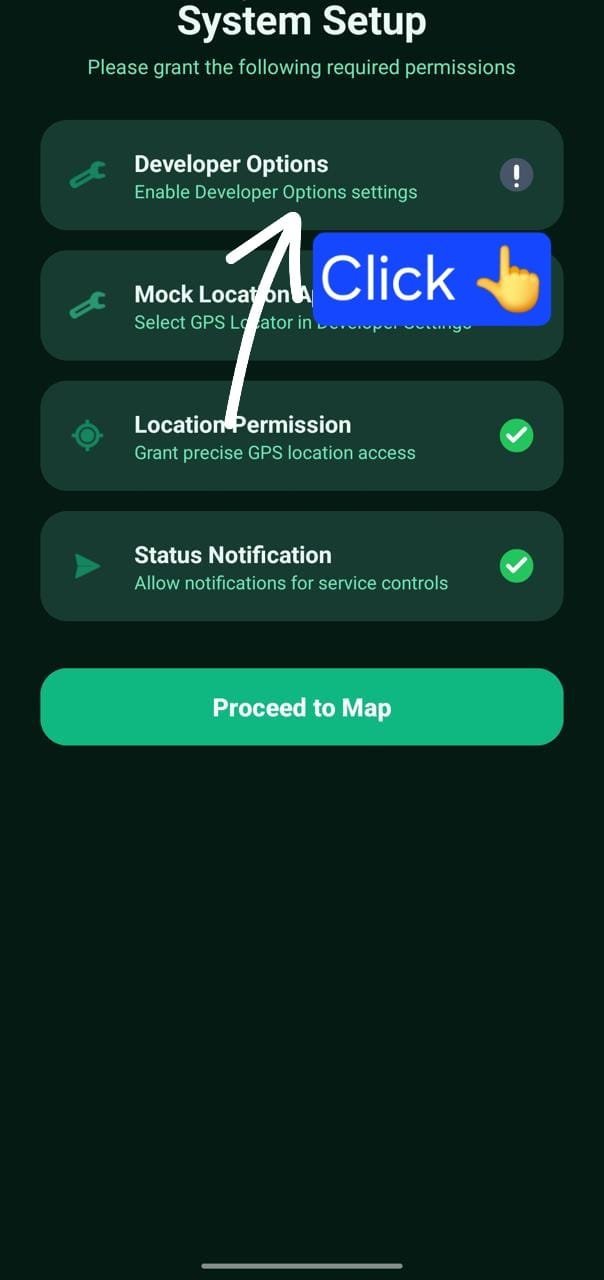
Launch the GPS Locator app on your Android smartphone. Upon first launch, the System Setup wizard will guide you through granting permissions. Tap on Developer Options (highlighted with Click 👆) to open system settings.
Enable Developer Mode on Your Phone Brand
To allow GPS spoofing, Android requires Developer Options to be enabled. Select your phone brand below and follow the quick sequence:
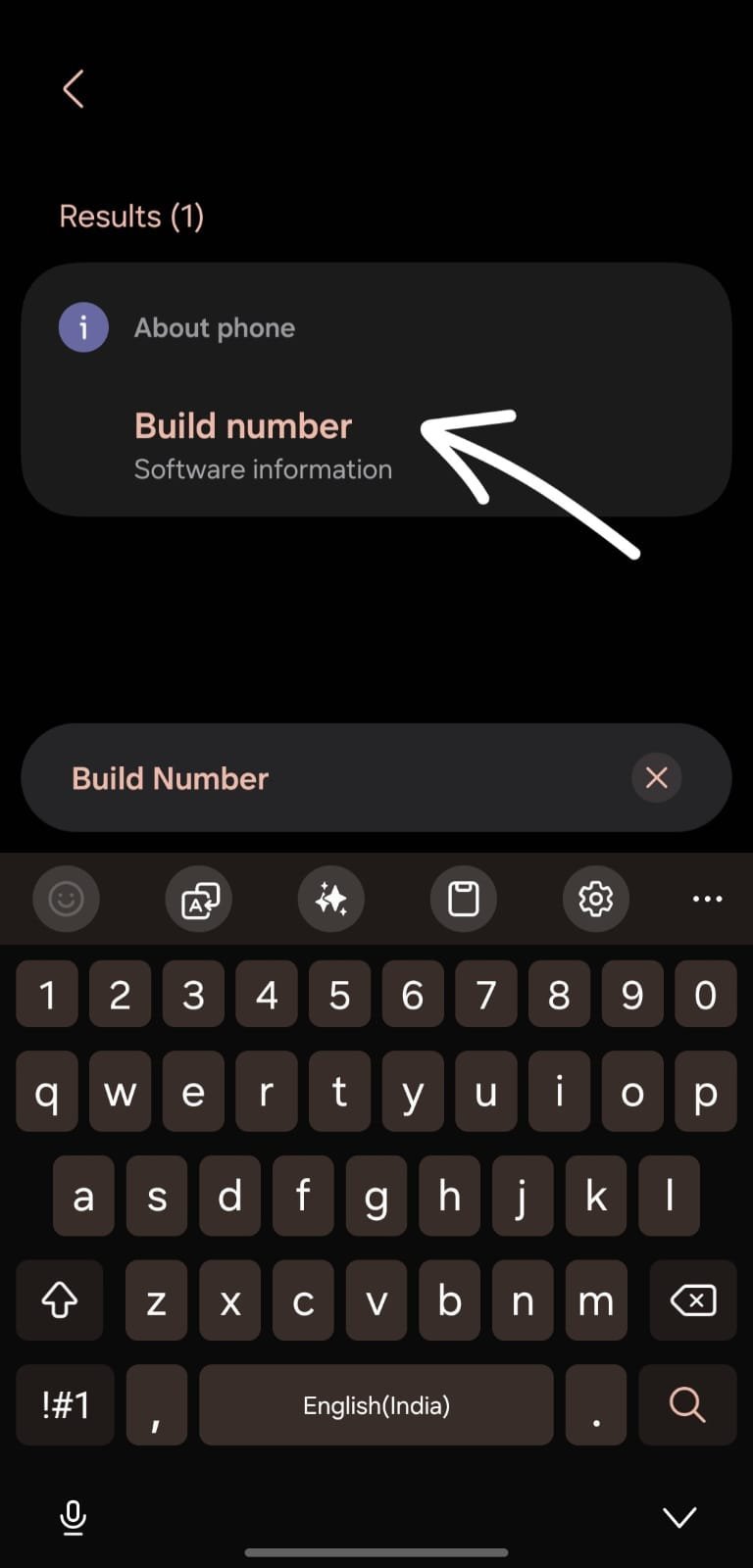
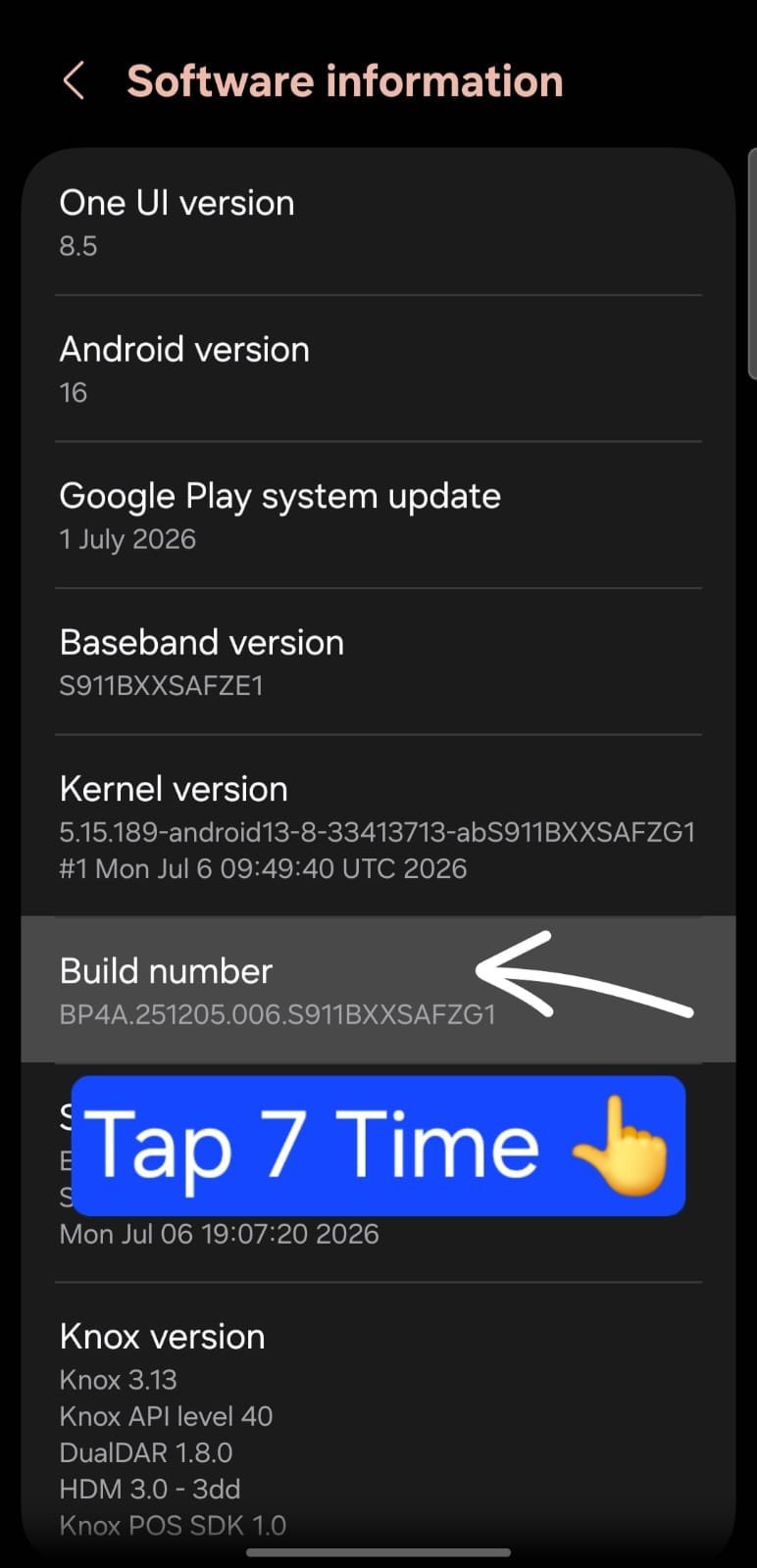
Method A: Search "Build Number" & Tap 7 Times
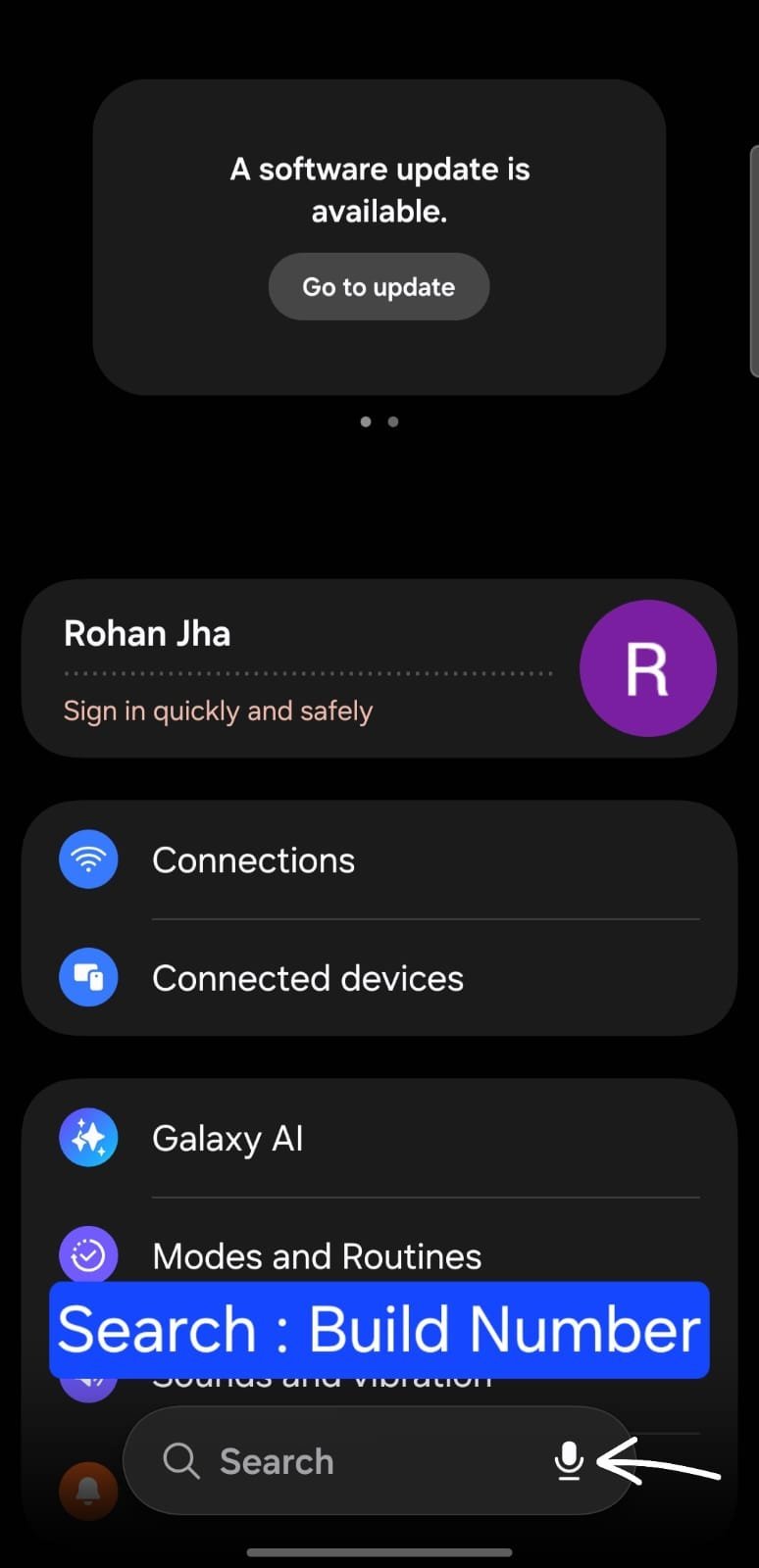
Open your phone's Settings app, search for Build Number, and navigate to About Phone > Software Information > Build Number. Tap Build Number 7 times continuously until you see "Developer mode has been enabled!"
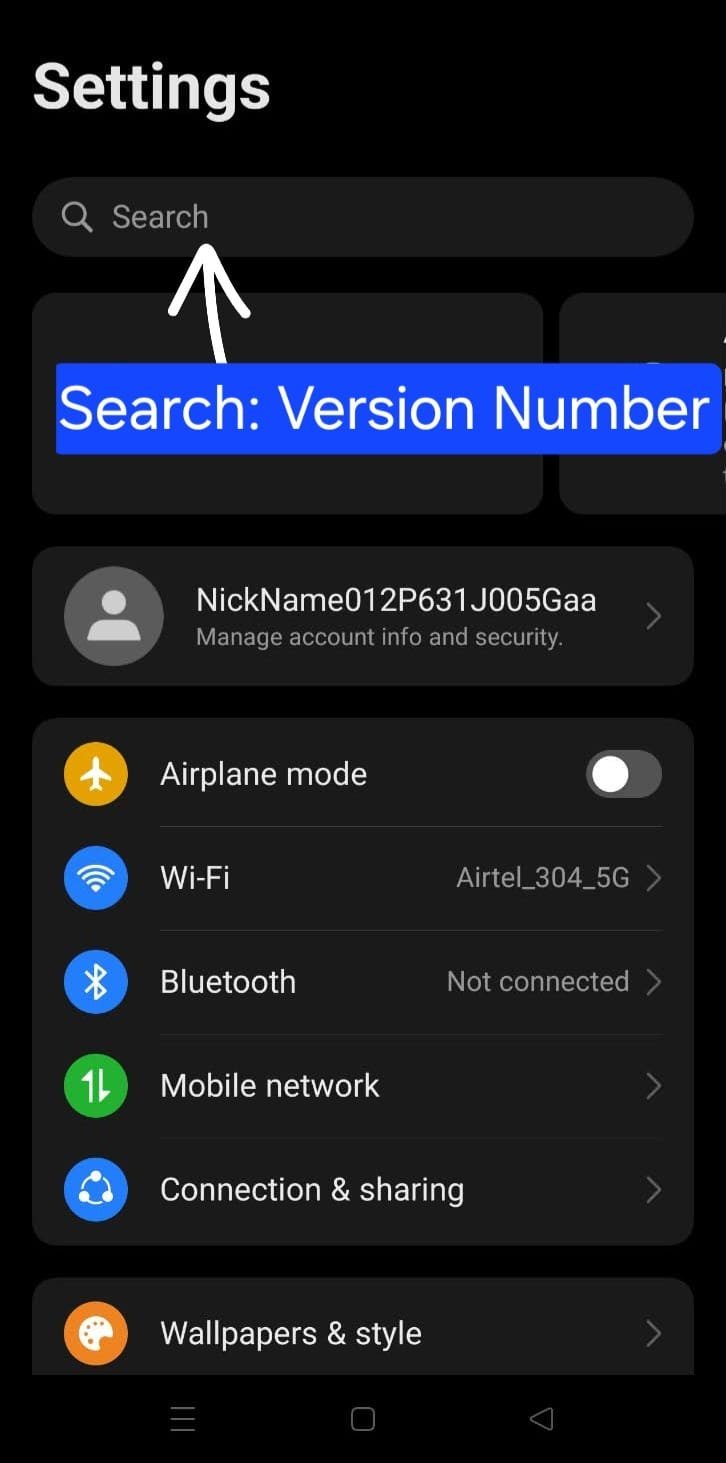
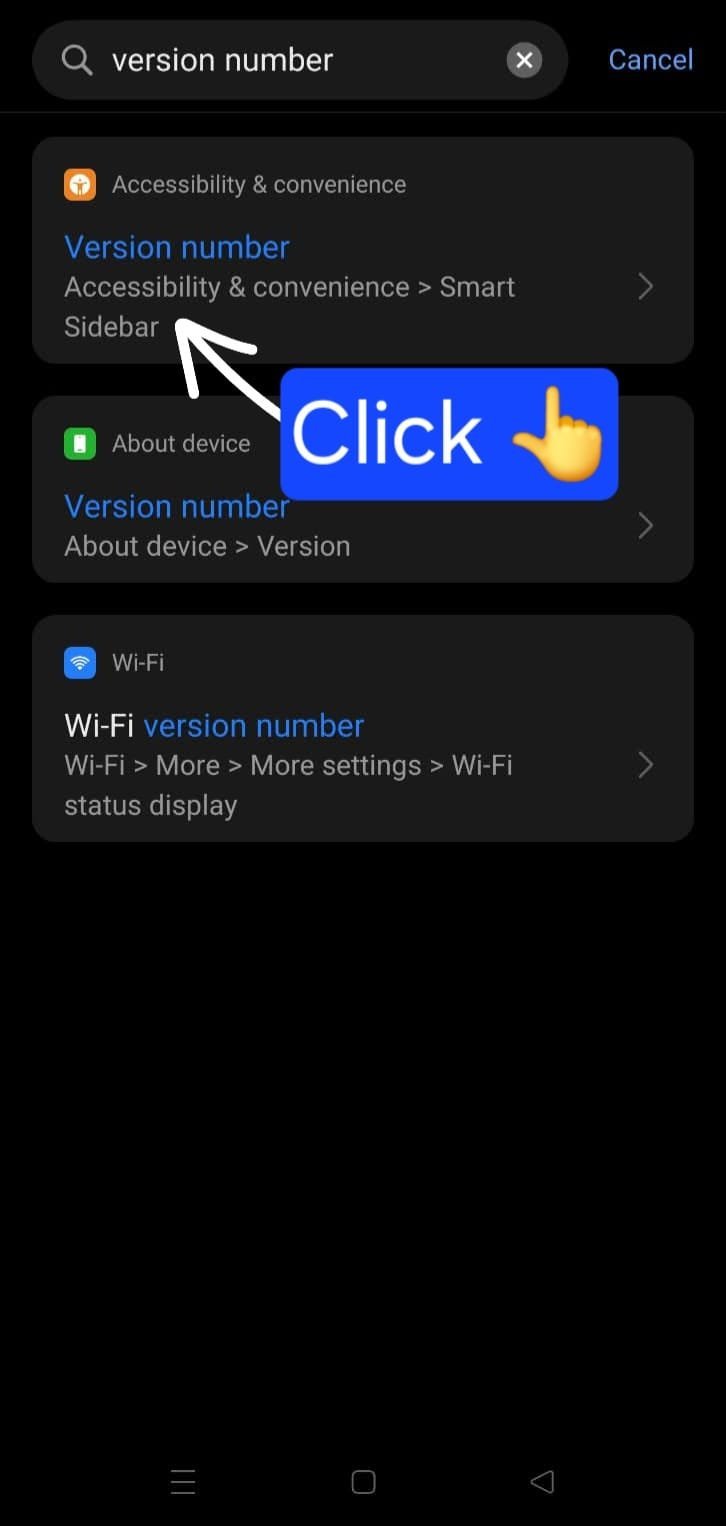
Method B: Search "Version Number" & Tap 7 Times
Open Settings, search for Version Number, go to About Device > Version > Version Number, and tap Version Number 7 times.
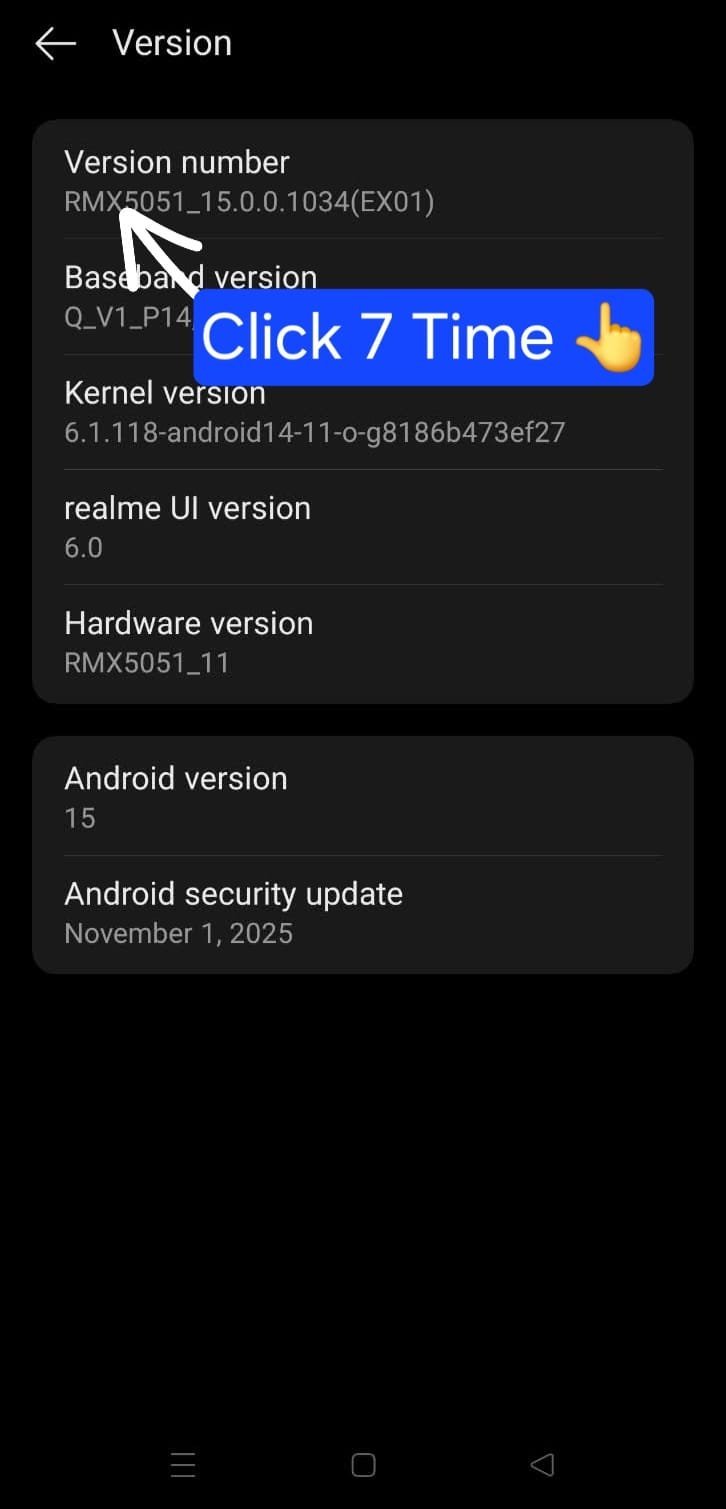
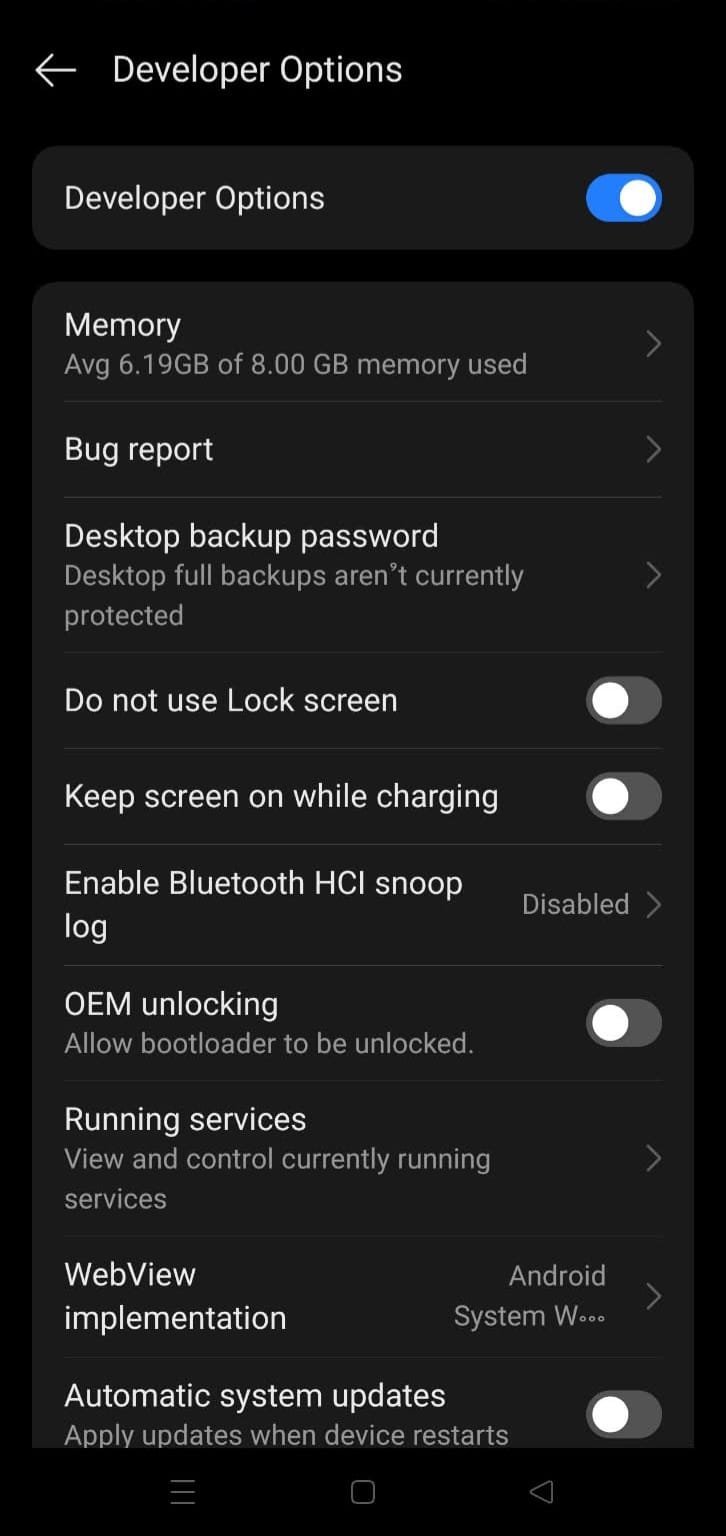
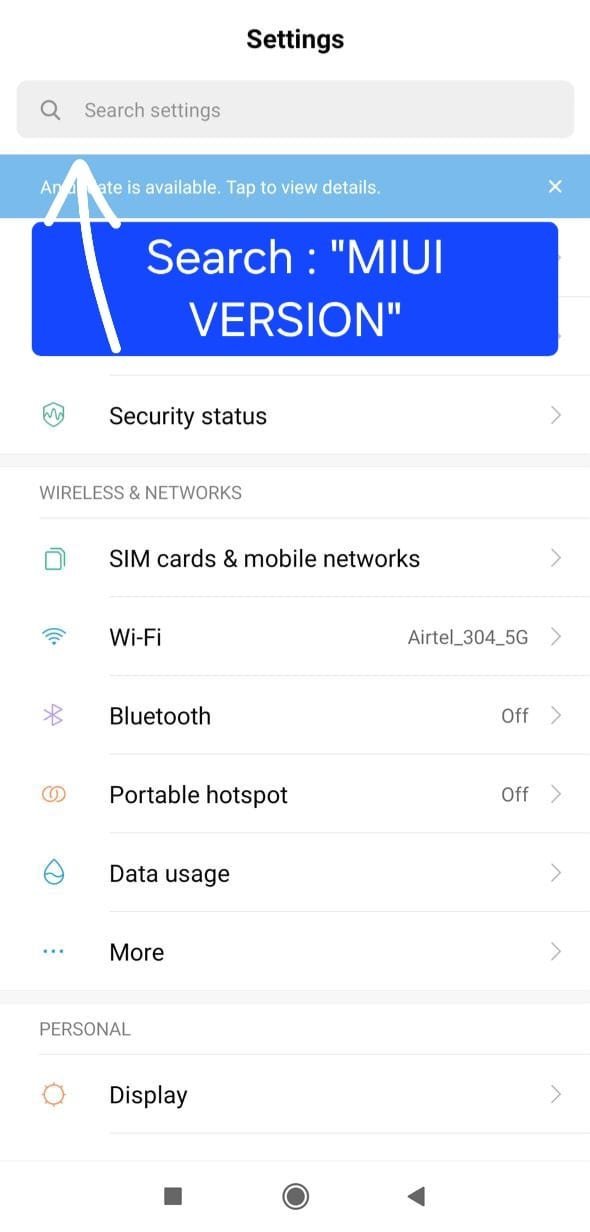
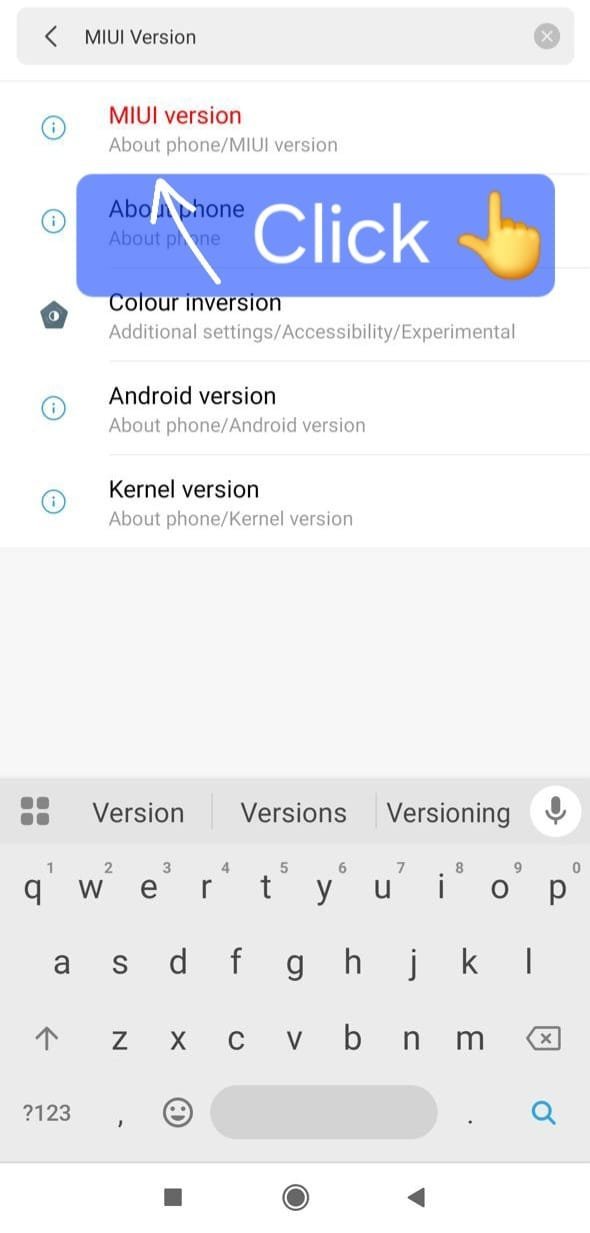
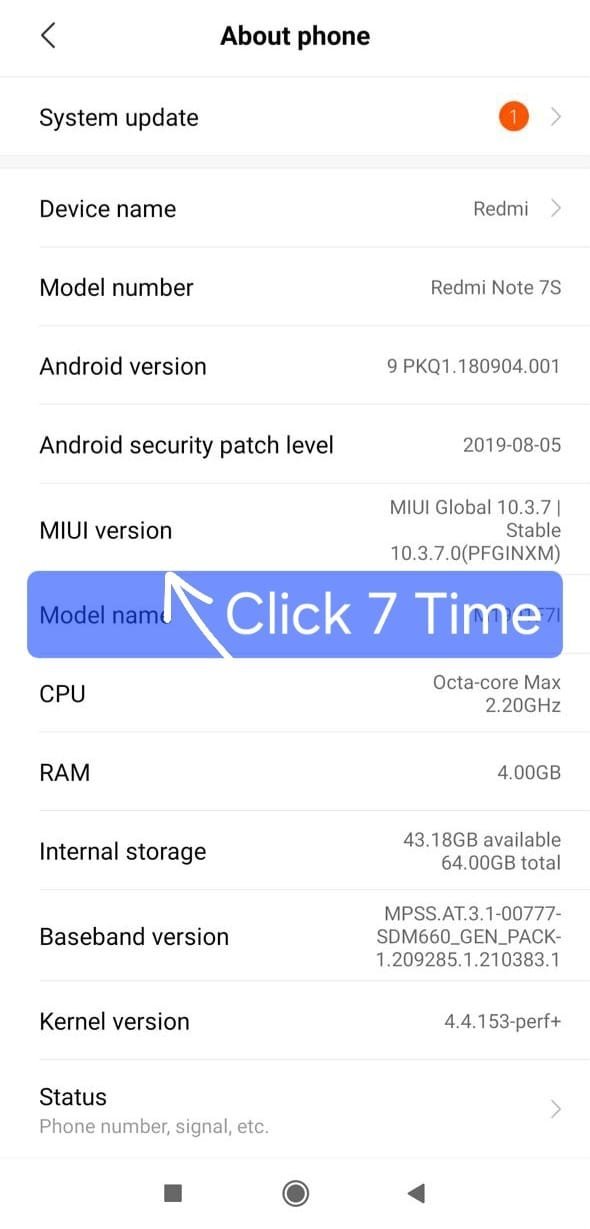
Method C: Search "MIUI Version" & Tap 7 Times
Open Settings, search for MIUI Version or OS Version, and tap MIUI Version 7 times to activate Developer Mode.
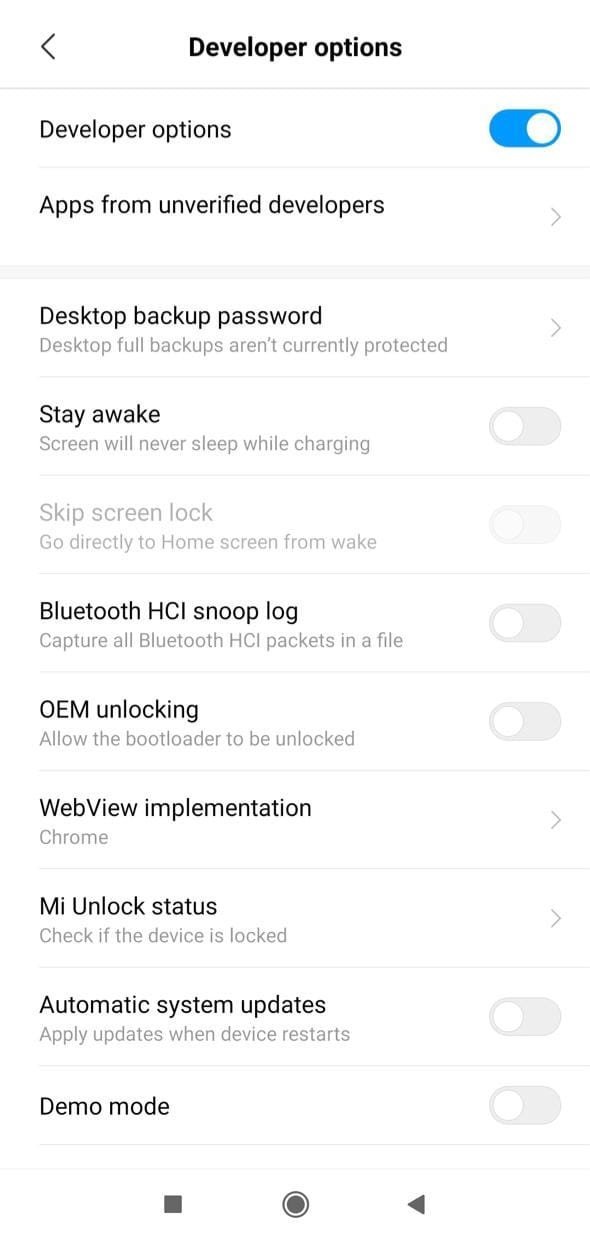
Select GPS Locator as Your Mock Location App
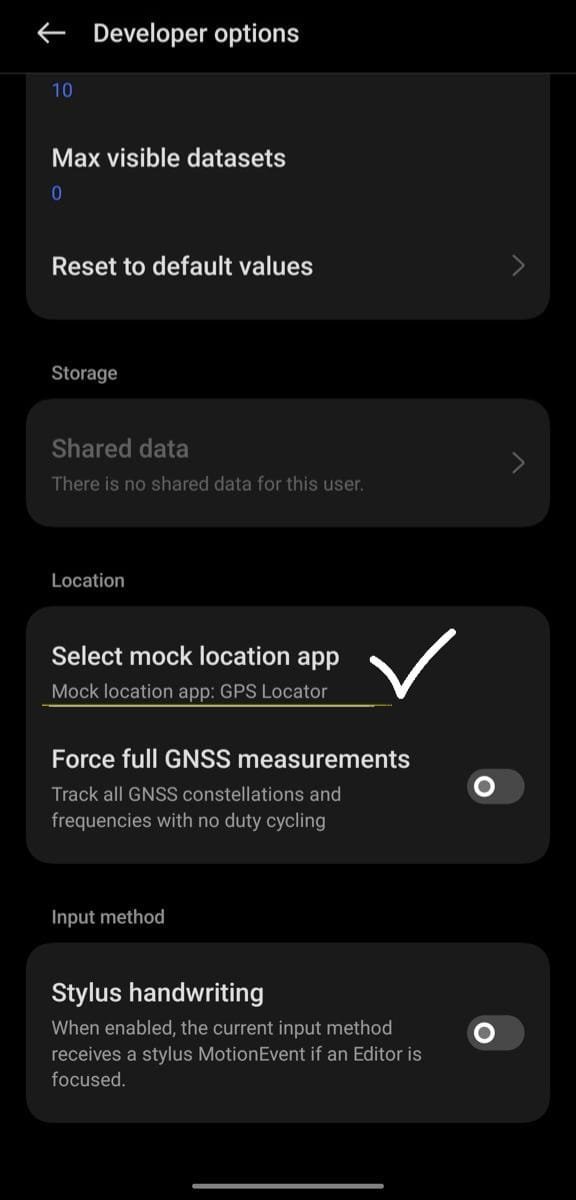
Now return to the GPS Locator app and tap Mock Location App. You will be directed to Developer options. Scroll down to the Location section, tap Select mock location app, and choose GPS Locator.
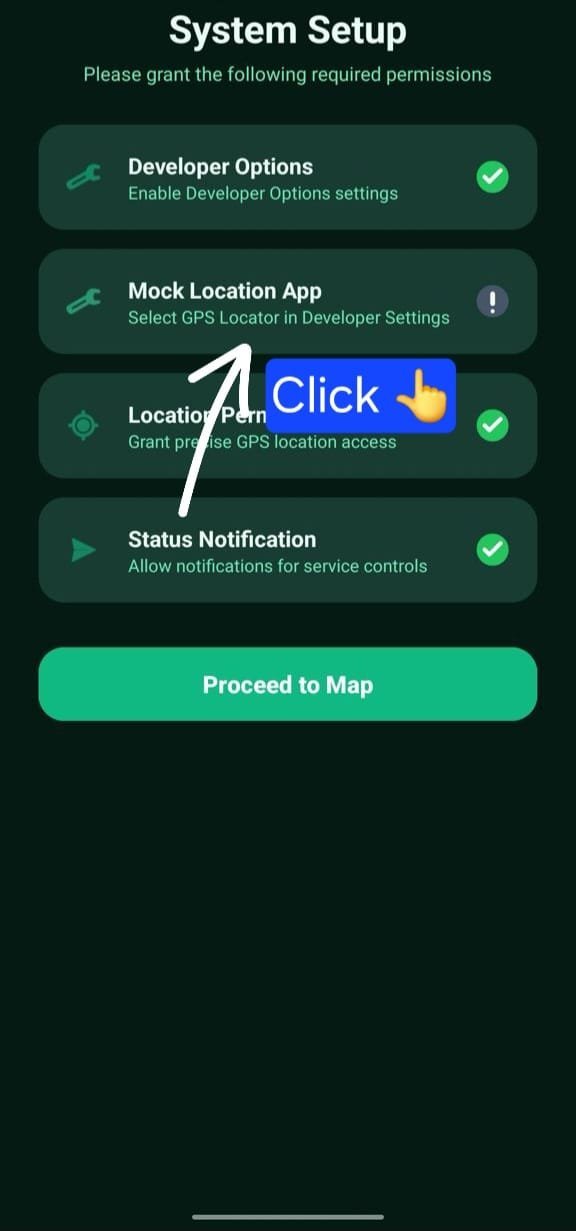
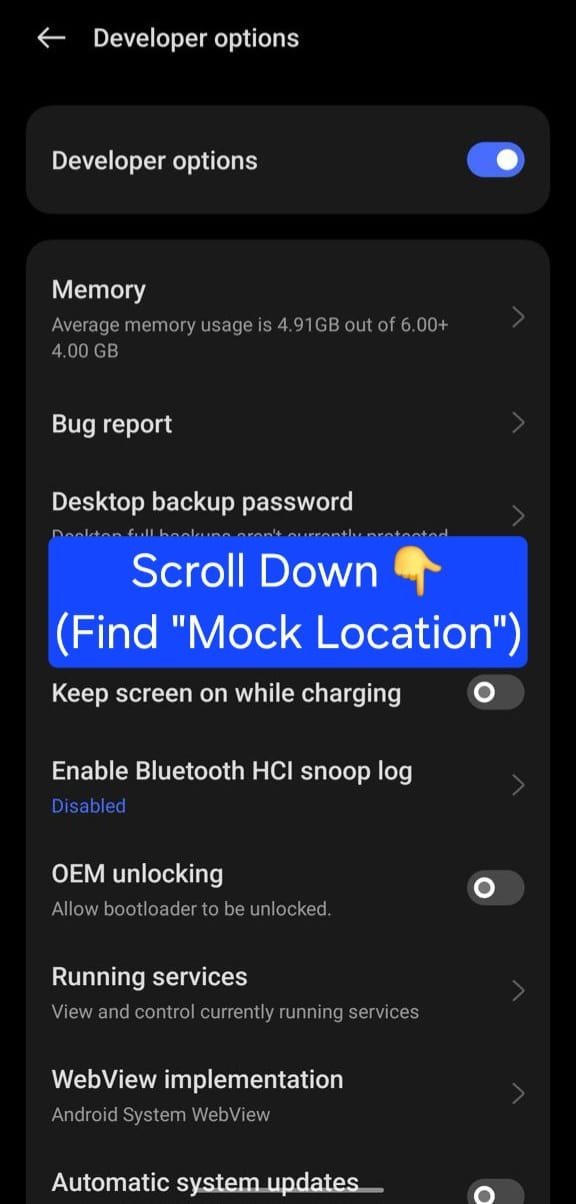
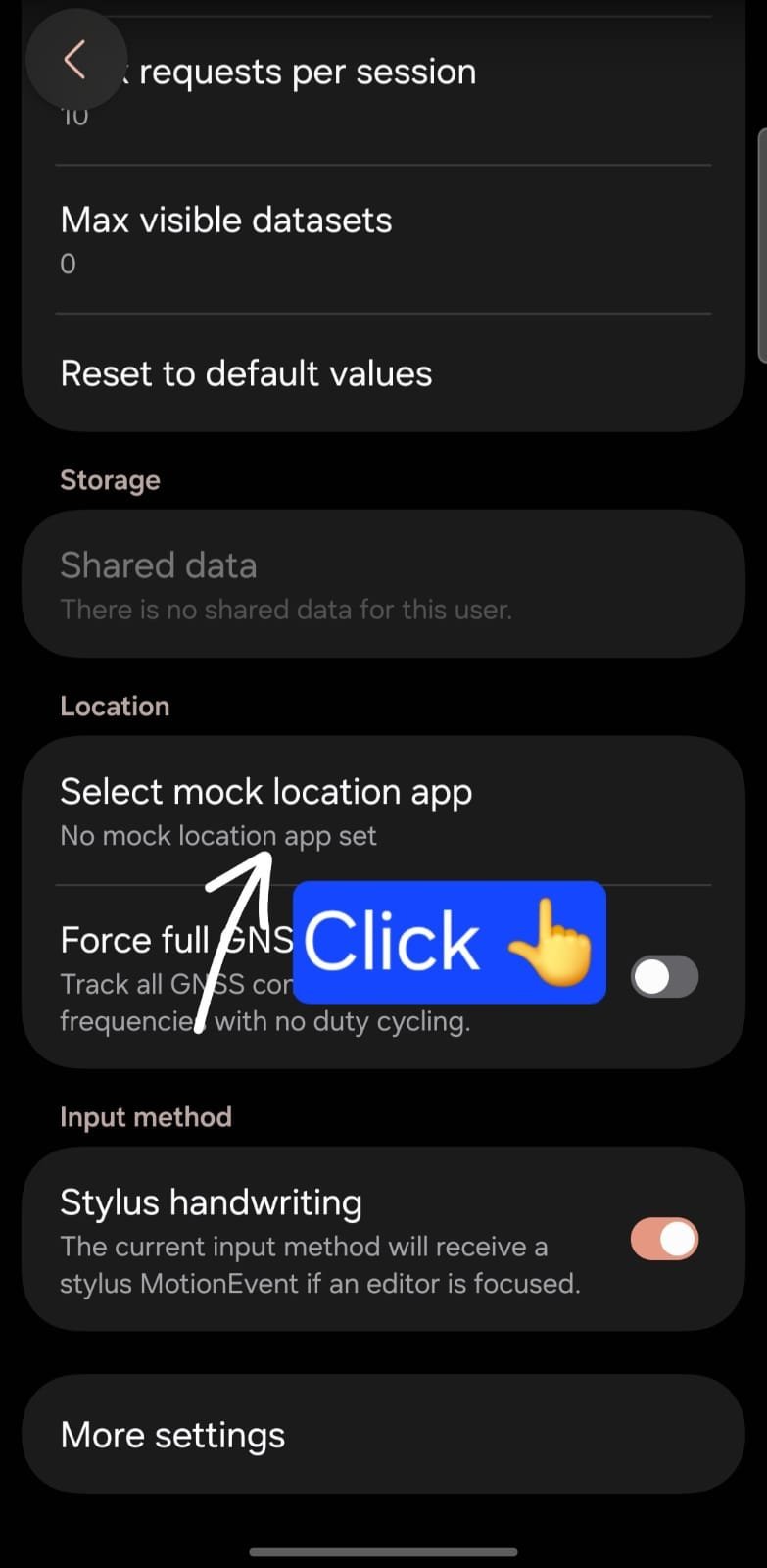
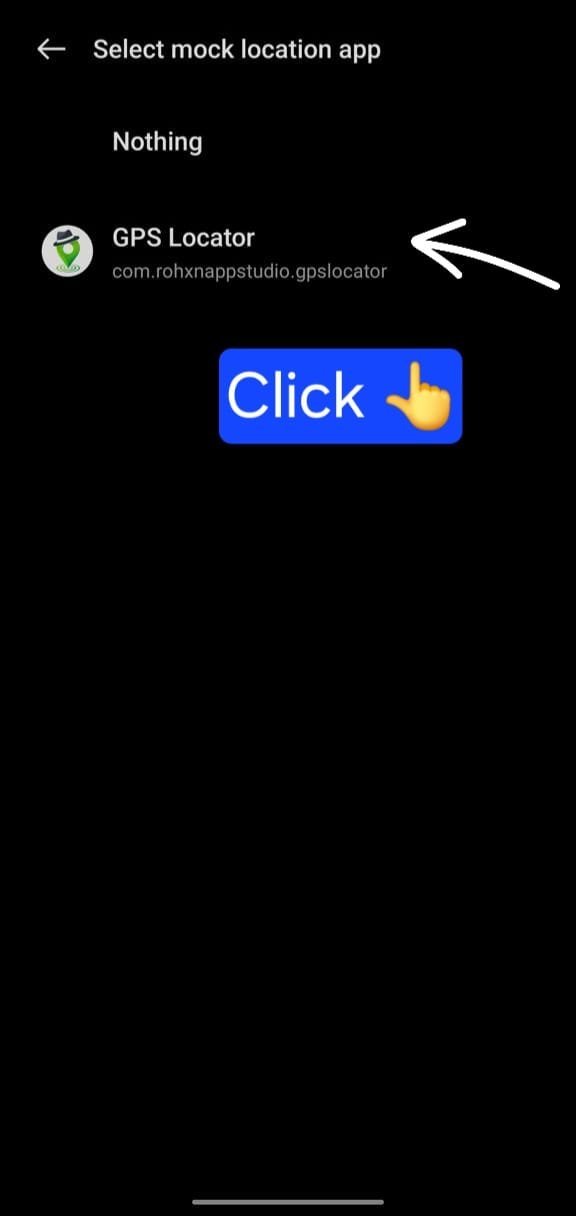
If you see "No mock location app set" after selecting, return to Developer Options and ensure GPS Locator is explicitly checked. This grants full mock location provider privileges.
Setup Complete! Proceed to Map & Teleport Anywhere
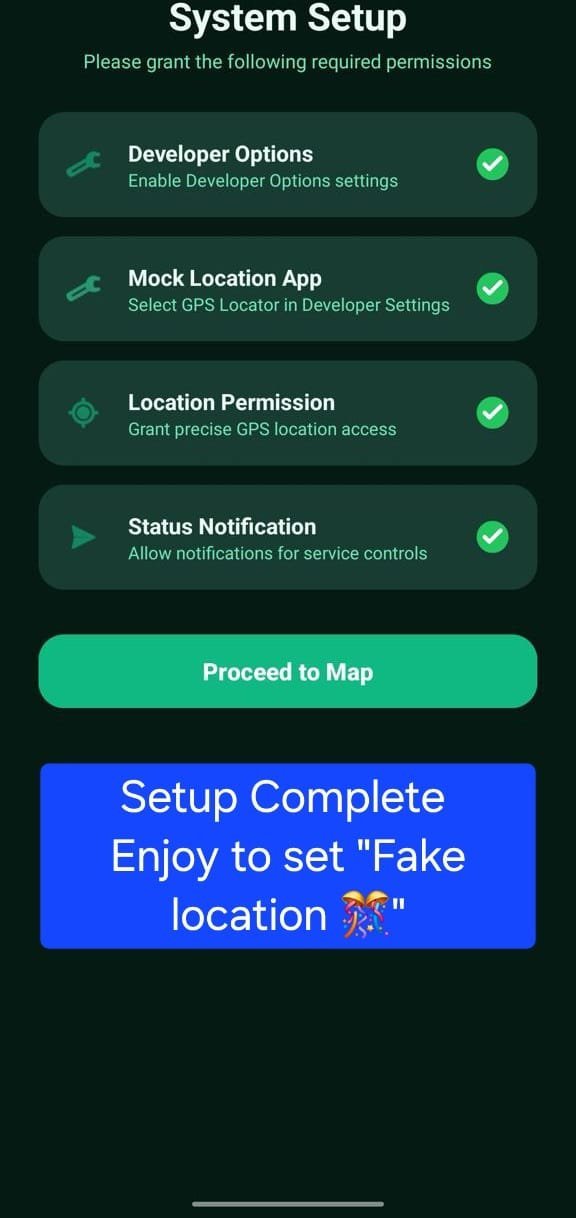
Return to GPS Locator. All setup permissions are now verified green! Tap Proceed to Map to launch the interactive map, pick any target location, and start location simulation.